How to Set Up Google Calendar Sync for Your Booking System
A complete guide to connecting Google Calendar with your booking system. Learn why two-way calendar sync matters, how to set it up in RZRV, and how to fix the most common sync issues.
Your calendar is the single source of truth — unless it isn't
Every service professional lives and dies by their calendar. It's the first thing you check in the morning and the last thing you update at night. When a new booking comes in through your scheduling system but doesn't appear on your Google Calendar, you've got a problem. When a personal block on Google Calendar doesn't prevent customers from booking that time, you've got a bigger problem.
Calendar sync is the invisible infrastructure that makes online booking actually work. Without it, you're running two separate systems — your booking tool and your calendar — and manually keeping them aligned. That's not a workflow. That's a ticking time bomb of double bookings and missed appointments.
The good news: setting up Google Calendar sync with a modern booking system takes about five minutes. The bad news: most people configure it wrong, and the subtle errors don't show up until a customer arrives for an appointment that doesn't exist on your calendar — or worse, two customers show up for the same slot.
This guide covers everything: why two-way sync matters, how to set it up correctly, how to troubleshoot the issues that inevitably arise, and how Google Calendar compares to Outlook for scheduling purposes.
Why calendar sync matters more than you think
The double-booking disaster
Without sync, your booking system doesn't know about events on your personal calendar. Your dentist appointment at 2 PM on Thursday? Your booking system will happily let a customer book a consultation at 2 PM on Thursday. You either cancel on the customer (unprofessional) or skip the dentist (unhealthy). Neither is acceptable.
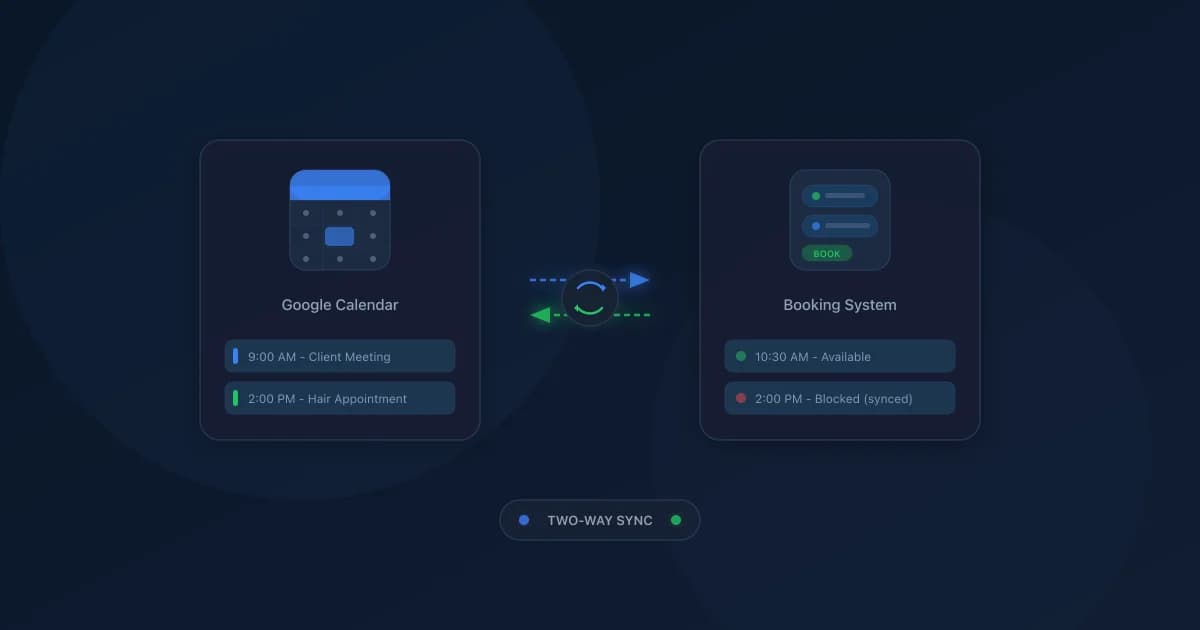
Two-way calendar sync eliminates this entirely. When you block time on Google Calendar for any reason — personal appointment, lunch break, kid's school play — your booking system sees that time as unavailable. Customers can't book it. Problem solved before it starts.
The invisible appointment
The reverse scenario is equally damaging. A customer books through your scheduling link, but the appointment doesn't appear on your Google Calendar because sync is one-directional or broken. You check your calendar in the morning, see an empty afternoon, and decide to run errands. Meanwhile, a customer is on their way to an appointment you don't know about.
This is why one-way sync isn't enough. You need bookings flowing from your scheduling tool to Google Calendar, and availability flowing from Google Calendar back to your scheduling tool. Two directions. Real-time. No exceptions.
Staff coordination
For businesses with multiple team members, calendar sync becomes even more critical. Each staff member's Google Calendar needs to communicate with the booking system so that availability is accurate across the entire team. When a stylist blocks off Tuesday morning for training, customers shouldn't be able to book that stylist on Tuesday morning — even if other team members are available.
This is where RZRV's calendar sync feature shines. It syncs each staff member's calendar individually, so availability is always per-person and always current.
One-way vs. two-way sync: understanding the difference
Not all calendar integrations are created equal. The distinction between one-way and two-way sync is the single most important thing to understand before configuring anything.
One-way sync (booking tool → calendar)
New bookings created in your scheduling system get pushed to Google Calendar. You can see them alongside your other events. But Google Calendar events don't flow back — your booking system has no idea what else is on your calendar.
The problem: Your booking tool shows availability based only on its own data. Any time blocked on Google Calendar is ignored. Double bookings are inevitable.
Two-way sync (booking tool ↔ calendar)
Bookings flow from your scheduling tool to Google Calendar and Google Calendar events flow back to your scheduling tool as blocked time. Your booking system checks both its own appointments and your Google Calendar when calculating available slots.
This is the only acceptable configuration for a real business. If your booking tool only supports one-way sync, you need a better booking tool.
What "real-time" actually means
Most calendar sync systems use polling — they check for changes every few minutes rather than syncing instantly. Google's Calendar API supports push notifications, which means properly built integrations can sync within seconds. RZRV uses push-based sync, so when you add a personal event to Google Calendar, your booking availability updates almost immediately — not five minutes later when a customer might have already booked that slot.
The polling interval matters more than most people realize. A five-minute delay is fine for a low-volume business. For a busy salon or clinic with appointments booked every few minutes, a five-minute sync delay is an open invitation for conflicts.
Setting up Google Calendar sync in RZRV
Here's the step-by-step process. It takes about three minutes if you have your Google account credentials handy.
Step 1: Connect your Google account
Navigate to Settings → Integrations → Calendar in your RZRV dashboard. Click Connect Google Calendar. You'll be redirected to Google's OAuth consent screen, where you'll grant RZRV permission to read and write calendar events.
What permissions are needed and why:
- View your calendars — so RZRV can check for conflicts before offering time slots to customers.
- Create and modify events — so RZRV can add new bookings to your calendar and update them when customers reschedule or cancel.
- View events on all your calendars — so personal calendars, shared team calendars, and any other calendars you subscribe to are all factored into availability.
RZRV never modifies your existing personal events. It only reads them to determine availability and creates new events for bookings.
Step 2: Select your calendars
After connecting, you'll see a list of all calendars associated with your Google account. For each one, you choose:
- Sync for availability — RZRV will treat events on this calendar as busy time. Customers can't book during these events.
- Push bookings to — New bookings will appear as events on this calendar.
- Ignore — This calendar won't affect availability or receive bookings.
Best practice: Most people select their primary calendar for both availability checking and booking push. If you have a separate "Work" calendar, push bookings there and check both your personal and work calendars for availability.
Step 3: Configure per-staff calendars (teams)
If you have multiple staff members, each person connects their own Google account. As an admin, you'll see all connected calendars in the team settings. Each staff member's availability is calculated independently based on their own calendar — so if your massage therapist has a personal appointment at 3 PM, only their 3 PM slot is blocked. Other therapists remain available.
Step 4: Set buffer preferences
Even with perfect sync, you'll want buffer time around calendar events. RZRV lets you set a pre-event and post-event buffer — for example, 15 minutes before and after any synced Google Calendar event. This prevents customers from booking the slot immediately before or after your personal appointments, giving you travel time or transition time.
Step 5: Test the sync
Create a test event on Google Calendar and verify that the corresponding time shows as unavailable on your booking page. Then book a test appointment through your booking link and confirm it appears on Google Calendar. Both directions should work within 30 seconds.
If either direction fails, don't go live until it's fixed. A broken sync that you don't catch during testing will catch you during a real customer interaction.
Common sync issues and how to fix them
Even with a clean setup, calendar sync can develop problems over time. Here are the issues we see most often and how to resolve them.
Events not syncing from Google Calendar
Symptom: You block time on Google Calendar, but your booking page still shows that time as available.
Causes and fixes:
- Wrong calendar selected. You might have added the event to a calendar that RZRV isn't monitoring. Check Settings → Integrations → Calendar and confirm the right calendars are marked for availability sync.
- OAuth token expired. Google OAuth tokens expire periodically. If RZRV can't reach your calendar, it falls back to showing its own availability only. Reconnect your Google account to refresh the token.
- Event marked as "Free." Google Calendar events have a "busy/free" status. If you create an event and set it to "Free" (the default for all-day events), RZRV won't treat it as blocked time. Change the event status to "Busy."
- Sync delay. If you just created the event, wait 30 seconds and refresh your booking page. Push-based sync is fast but not instantaneous.
Bookings not appearing on Google Calendar
Symptom: A customer books an appointment through RZRV, but it doesn't show up on your Google Calendar.
Causes and fixes:
- No push calendar selected. You connected Google Calendar for availability checking but didn't select a calendar to push bookings to. Go to Settings → Integrations → Calendar and select a push destination.
- Calendar storage limit. Google Workspace accounts have event limits per calendar. If you're hitting the limit (rare but possible for high-volume businesses), archive old events.
- Permission revoked. If you recently changed your Google account security settings or revoked app access, RZRV can't create events. Reconnect to re-grant permissions.
Duplicate events
Symptom: The same booking appears twice on your Google Calendar.
Cause: Usually happens when you have multiple scheduling tools syncing to the same calendar, or when you manually create a matching event after the sync already pushed one. RZRV uses unique event IDs to prevent self-duplication, but it can't prevent conflicts with events created by other tools.
Fix: Use only one scheduling tool per calendar. If you're migrating from another tool, disconnect the old one before connecting RZRV.
Time zone mismatches
Symptom: Bookings appear at the wrong time on your Google Calendar — off by one or more hours.
Cause: Your Google Calendar time zone and your RZRV business time zone don't match. This is the most common issue for businesses that serve customers across time zones.
Fix: Set your RZRV time zone to match your Google Calendar time zone in Settings → Business → Time Zone. For multi-location businesses, each location should have its own time zone setting. RZRV handles the conversion so customers see times in their local zone while your calendar shows them in yours.
Google Calendar vs. Outlook: which syncs better?
Both Google Calendar and Microsoft Outlook (including Office 365) are first-class calendar platforms, and RZRV supports two-way sync with both. But they have meaningful differences when it comes to booking system integration.
Google Calendar advantages
- Wider adoption. More small businesses and solopreneurs use Google Calendar, which means better ecosystem support across scheduling tools.
- Push notifications API. Google's calendar API supports real-time push notifications, enabling near-instant sync. Most integrations with Google Calendar are faster than their Outlook equivalents.
- Simpler OAuth flow. Connecting a Google account is straightforward — one click, grant permissions, done. Outlook's OAuth can be more complex, especially with organizational admin policies.
- Free tier. A personal Google account with Google Calendar is free. No workspace license required for basic use.
Outlook advantages
- Enterprise integration. If your business runs on Microsoft 365, Outlook integrates natively with Teams, SharePoint, and the rest of the Microsoft ecosystem. Calendar events can trigger Teams meetings automatically.
- Shared mailboxes and resource rooms. Outlook handles shared calendars and room booking natively, which matters for businesses that schedule physical resources (meeting rooms, equipment, treatment rooms).
- Admin control. Microsoft 365 administrators have granular control over which third-party apps can access calendar data. For compliance-heavy industries (healthcare, finance), this matters.
- Distribution groups. Outlook's group calendar functionality is more mature than Google's, making it easier to view team-wide availability in one place.
Which should you choose?
Use Google Calendar if: You're a small business, solopreneur, or startup that values simplicity and fast sync. Your team already uses Gmail and Google Workspace. You want the broadest compatibility with third-party scheduling tools.
Use Outlook if: You're an enterprise or mid-size business running Microsoft 365. You need room scheduling, shared mailboxes, or compliance features. Your IT department mandates Microsoft tools. (Tempted to just use M365's bundled Bookings app as your scheduler? Check the per-seat math in our free Microsoft Bookings alternative breakdown first.)
Use both if: Your team is split. RZRV can sync with multiple calendar providers simultaneously — one staff member on Google Calendar, another on Outlook. The booking system doesn't care which calendar backend each person uses, as long as it can read and write events.
For a deeper dive into how scheduling tools handle these integrations, see our comparison of Calendly, Cal.com, and Acuity — calendar sync quality is one of the key differentiators.
Advanced sync strategies
Once basic sync is working, these strategies help you get more out of it.
Personal time blocking
Use Google Calendar to protect your personal time, and let sync do the enforcement. Block lunch breaks, gym sessions, school pickups — anything you don't want customers booking over. RZRV respects all of these automatically. You don't need to configure "break times" separately in your scheduling tool.
This is simpler than managing availability rules in two places. Your calendar becomes the single source of truth, and your booking system follows.
Multi-calendar availability
Many professionals have multiple Google Calendars — a personal calendar, a work calendar, a shared family calendar, a side project calendar. Connect all of them for availability checking. RZRV will aggregate busy times across all calendars, so a family dinner on your shared calendar blocks that time slot just as effectively as a work meeting.
Color-coded booking events
RZRV pushes bookings to Google Calendar with structured event details — customer name, service type, duration, and contact info in the event description. You can use Google Calendar's color-coding or auto-labeling features to visually distinguish booking types. Quick services in green, long services in blue, new customers in yellow.
Calendar-based reporting
Because bookings sync to Google Calendar, you can use Google Calendar's built-in time insights (or third-party tools like Clockify) to analyze how your time is spent. What percentage of your week is booked? Which days are busiest? How much buffer time do you actually have? This supplements RZRV's analytics dashboard with a calendar-native view.
Checklist: getting calendar sync right the first time
Before you go live with online booking, verify each of these:
- Two-way sync enabled — not just one direction
- Correct calendars selected — both for availability checking and booking push
- All staff members connected — each person's calendar synced independently
- Time zones matched — booking system and Google Calendar aligned
- Buffer times configured — pre/post event buffers for transition time
- "Busy" status on events — all-day events default to "Free" and won't block availability
- Test completed — verified sync in both directions before accepting real bookings
- Old tools disconnected — no duplicate sync from previous scheduling tools
If all eight boxes are checked, your calendar sync is solid. Customers will only see genuinely available times, bookings will appear on your calendar automatically, and you'll never have to manually cross-reference two systems again.
Calendar sync is the foundation — build on it
Good calendar sync is like good plumbing — you don't think about it until it breaks, and when it breaks, everything floods. Get it right from the start, and the rest of your scheduling workflow falls into place.
With reliable two-way sync, you can confidently enable AI-powered features like no-show prediction and smart slot optimization, because the data feeding those systems is accurate. You can let your booking page accept appointments 24/7 without worrying that customers are booking over your blocked time. And you can stop spending mental energy on "did that appointment sync?" — because it always does.
Calendar sync isn't glamorous. But it's the difference between a booking system that works and one that creates more problems than it solves. Set it up once, set it up right, and move on to the parts of your business that actually need your attention.